Monday, 30 December 2013

Security update: Online with Sailfish, Android browsers and apps

Just a few common Android Browsers. Famous Firefox missing

Google DNS usage located on Jolla

It's been found out that Myriad Alien Dalvik, service on which all Android applications run on Jolla, sets Jolla to use Google's DNS server 8.8.8.8 in Android environment. This DNS is in use for all Android applications connecting to the internet, including Browsers, SoMe Apps (fb, twitter, whatsapp etc...) and any other applications. This means that every URL you send via an Android app is first sent to Google. This doesn't happen only on Alien Dalvik - It's normal in all Android environments. Android is Google's property.

A lot of Jolla users have installed Android support (myself included) without knowing this - but here we have another great example of the OpenSource ideology: This was discovered, and now the info is spreading fast through the community.

Those who don't want to send their every "net step" via Google have exactly two options: Use Sailfish Browser (in a network not using Google's DNS) or hack the Alien Dalvik (to use a different DNS, in a network likewise). Personally I'm using a lot of Google's services, knowing that they are profiling me all the time to show me the most attractive commercials. The world is full of people like me - 81% of all the smartphones in the world are Androids. Among Jolla owners, however, the percentage might be a lot smaller. Some people care. Knowledge is Power, and we can only hope for Google to use their huge "property" wisely.

DNS - Short basics

DNS server is always the first place connected when enterin the net. It offers the directions to the required content. A simple example:
  • You enter http://together.jolla.com into your browser
  • that text is sent to the DNS server, normally one defined by your network provided
  • DNS server returns a numeric address where the named site locates (54.194.54.215, Ireland)
  • Your phone builds a connection to that server (via several servers on the way)
  • Content is transferred to your phone

Sailfish Browser

The biggest reason for people using Android browsers on their Jolla is that Sailfish browser looks like an alpha version so far. It has 5 virtual buttons (back/forward/refresh/favourite/tabs) and 3 more pulley menu items behind tabs (new tab, close all tabs, share). Sharing opens a simple link share with adding your own writing - nothing more. The browser also include a few bugs, crashing sometimes with no explanations. However, there's someting good: Gecko based user agent is modern, and scores very well in for example html5 test (You can try by opening html5test.com with your Jolla browser)

Updates wanted and expected

Users have been patient while waiting for new features to be released, but this finding in Alien Dalvik could cause some wishes for faster browser app updates - remains to be seen. New features are promised during Q1/2014, but nobody knows what they are. Other important updates are 4G/LTE support, NFC bug fix (should be available in couple of weeks) and Store related bugs (downloading / connection problems), just to name a few. So far, Jolla has released two larger updates (1st for bug fixes, 2nd for some features and more bugfixes) with unexpected speed. Jolla has managed to keep their community quite happy, considering the amount of things needed to be done. Most whining has been seen in Jolla's policy in informing their customers and a slow care response in common.

HowTo: Install and setup Go Launcher EX on Jolla

GO Launcher EX: Changing the Home Screen with a swipe gesture
Included HowTo: Photo tweet with Jolla
1. warning: There are too many images of my sofa. And too many images.

2.: This is not an Android advertisement - the launcher is just an app. And it looks better than an Android UI
(It's actually pretty - but just think about Sailfish after years of development)

Some important basics

  • Go Launcher EX is a FULL launcher for Android apps. It actually looks like an Operating System UI (User Interface) in your eyes. But looking at it from the Sailfish point of view, it's just one Android app running on our nice Alien Dalvik surface. 
  • Go launcher EX can run on the baackground like any other Android App - in an active cover.
  • In use, Go Launcer EX feels like an OS, but it can handle only the Android related content installed to your phone. For example it can't use Sailfish camera app - it needs an Android one.
  • App uses alien dalvik pointed folders for saving stuff like images and music. It has access to some Sailfish folders too (the ones shared by Sailfish). Not all alien dalvik folders are accessible via Sailfish or computer (Beta?)
  • GO Launcer EX is a big app, so it uses some memory. During my tests it crashed the Aalien Dalvik several times, closing all my running Android apps - but I'm quite a heavy tester. Anyway, recommended to use simple preferences and minimum amount of screens / widgets etc...But in my overall experience, I'm about to hold on to this as long as Sailfish is in Beta stage.

pre-requisites:

1. Android support installed
2. Aptoide store installed
(or any other store with GO stuff available)

Both are instructed in a previous post HowTo: Flash Player for Jolla 

Installing:

Open store, search for "Go Launcher EX". Install
 Go back, search for "GO " <-- note the space, it's a nice filter for this:
Install some widgets you might like.
(Not all widgets work, but those can be removed later.)

Opening:

Close the store, go down to your Sailfish launcher screen. Tap the App "Go Launcher EX"

Setting up

First, get rid of stuff that doesn't work. Icons like Go Store and Market leads you to Google Play, so if you haven't hacked one to your phone, these are all trash. Remove them from both the home screen and the footer menu by HOLD & DRAG (garbage is at top, and top turns out red when it's time to drop). Here, another working App (TuneIn radio) is beeing dragged:

Setting up your own home screen

In GO Launcer EX the amount of home screens is not much restricted, but I recommend to use only 1-3 for memory reasons. HOLD on your empty home screen to open the edit view showing the grid (grid is customizable, more about that later):
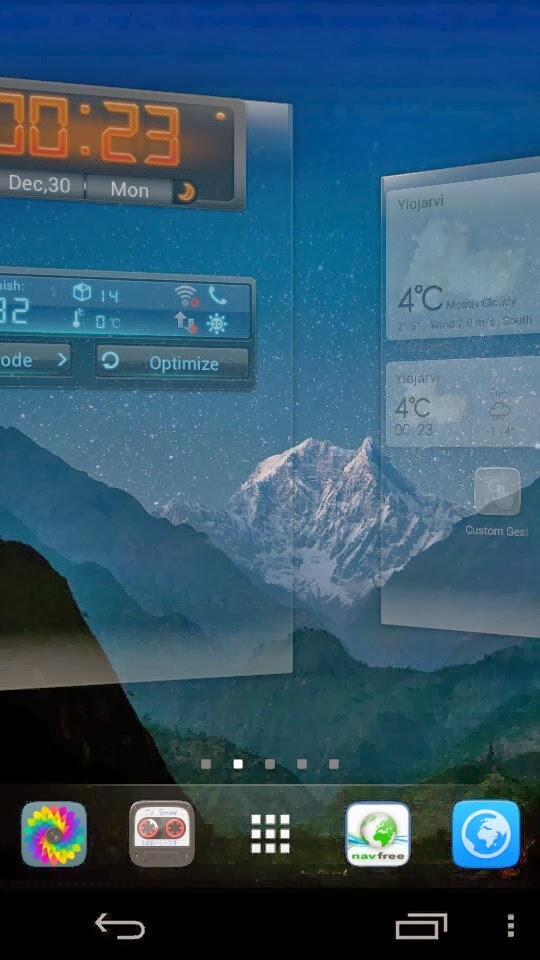
Desired home screen can be selected with swipe gesture. Icons and widgets are selected from the footer menu. They fly to the selected home screen when tapped. Here, an 4x2 sized clock widget (downloaded from Aptoide earlier) is flying to the first free grid space:
Clock is placed and another widget, Go Power Master selected:
Second widget placed, time to move on:
I didn't want any icons here, so I just pressed the virtual back button to return to my home screen. Next, I selected my wanted footer menu icons (HOLD on icon to move/throw away, HOLD on empty space between icons to add a new one).
The footer menu is scrollable with swipes to left and right like the home screens, and the footer can hold a nice amount of icons (customizable)
 Above, I'm scrolling to another home screen on right. In there I have set a couple of weather widgets and one great GO App (included to the Launceh) called Custom Gesture (returning to that later):
 Ok, two home screens are ready. Time to get rid of the rest, the next view opens via "Menu" (3 dots down right) --> "Edit":
Home screens are moved to garbage just like any widget or icon. HOLD+DRAG&DROP

Ok, back home - time to study some gestures (right, this is Jolla). I've tapped "+" and saved this gesture earlier, so now I just draw it again. It should...
Open my Twitter App. Yes! Clicking the camera icon won't open your Sailfish Camera, but I happen to have another: HDR Camera for Android (Zoom camera is another great camera app). Taking a boring photo of my sofa surface:
Some cropping, maybe adding a nice filter from below?
 Nope. Original is nice. After Save I'm back in Twitter, and there seems to be some more editing options.
Wow, another set of filters in Twitter:
Cropping more, just to test it:
Time to send. Adding text:
And there it flies in bits, from my Jolla, via WLAN to my router, via Cables and satellites all the way to the Twitter servers in US. That didn't take long:

Oh sorry folks... I got a way out of line. Wasn't I suppose to present GO Launcher EX, not sending my sofa bits to US... Above, pressing the Android App menu opens a list of active Android Apps and leaves Twitter to run on the backgound. Back to the GO Launcher, and next, entering Settings:
 Oops, NONE of these works. Unfortunately, Go Launcher EX has not direct access to Jolla Hardware. So let's move to the Preferences. There are plenty, so I'm selecting a view most Unlike:
Multi finger gestrures... No change to get those, at least not yet (requires paid version). Well, check the rest of the preferences yourself, these images were just about as boring as my sofa. Let's hit the Go Launcher Gallery (included App):

Interesting... There are my Sailfish photos too. And in the camera folder, the 187 seems like amount of all my photos taken with both Sailfish Camera App and HDR Camera App. Let's see what we can do with these images...
Additional to a nice dia show possibilty (Sorry folks, not showing all those girls to you), there seems to be a share option like in Sailfish. And yes, I've tested it to work with all the apps above - if you have other social media apps, I suppose they work as well. Returning home now and tapping my weather widget:
This one has a nice backround image. The clouds are moving (what? You don't see?) City can be changed with swipe (if you have selected more then one, see menu on top corner). This looks like something I'd like to see on Sailfish. The unlike OverSideSwipe does the trick again: The last active Android screen is snapshotted as an active cover:
But wait... Those cloud are still moving (What? You still can't see?) Could this app be up to date in a cover? Can't tell, as I don't have time to wait for the forecast to change. (EDIT: No, it isn't). Now visiting back at that app, changing the city and adding some more sailfish covers to not to look like an Android fan:
Screen Shot is a must have - from Jolla Store! CSD Tool is an app ment for Developer testing (included, but hidden). My terminal is showing some action too. Now this screen is more unlike :)

Additional Notes:

  • Free GO widgets include annoying adds. I don't advertise on this blog so far, so you didn't see any :)
  • I recommend installing some Android Camera for full benefit of the GO Launcher EX Gallery. However, you don't need the whole launcher for sending photos to Twitter - for that, just the camera app is enough.
  • All Android Apps using a clock seems to show UTC time. I've tweaked my alien to the correct time zone, and both my navi + these widgets showed correct time when opened - but the time in widgets isn't updated until opened again. Beta - hopefully not worse.
  • Facebook is not fully functional with the camera. Photos shared must be moved via gallery.
  • Skype can use your camera, and it doesn't need either camera app. Even the image rotation is right with the front camera there - unlike in many other apps. Beta again.
  • Sorry for the sofa images... Maybe I'll ask my wife to pose next time. Beta photographer...
  • Important: Aptoide is not officially supported... own responsibilty... etc... you know.

Unlike New Year!

Glad to be back :)

Sunday, 29 December 2013

Closed - Jolla missing OpenSource policy


 Edit 31-Jan-2014: Thanks Jolla, on behalf of the whole community! With Sailfish OS update 1.0.3.8 Naamankajärvi, Jolla has delivered the solution. It's now possible to remove the OEM lock  via updated recovery menu. OpenSource policy is coming back :)

A pick from the changelog:
  • Improved recovery mode functionality introducing new features such as bootloader unlocking, shell and filesystem recovery options
Earlier Marc Dillon already tweeded this promise, now (only a month later) carried out:

Original article 29-Dec-2013:

Due to an unexpected turn that Jolla has locked their phone from OpenSource developers without warning them or discussing with them in advance, I'm stopping my contributing to the community. My contributing was done without benefits in a believe for having the most OpenSource favoured phone in the market.

Besides that this is the last article I write, I'm pulling out of my ongoing bug tracking projects: One conserning location services, 2 conserning memory handling, one possibly related to i2c/NFC (the project wasn't started yet).

My phone went OEM locked after Sailfish update (version 1.0.2.5) was installed. I'm ready to join the community again only after OpenSource policy is back, and I see a decent explanation of why the act was done the way it was (sudden, silent way and not e.g. offering a separate, OpenSource solution for those who would have liked it at the same time).

For information:
  • OEM lock enables the manufacturer and 3rd parties to enter hidden code into system. For example in China, where the government has a strict policy to the community, phones sold there are usually OEM locked.
  • No phone in the market is true OpenSource, and I didn't expect Jolla to be one either. There's always some closed, copyrighted code included, especially from the hardware part manufacturers, and this is somewhat acceptable. So far, Jolla was doing a great job having as much OpenSource code in their phone as possible.
  • Sailfish OS itself remains as OpenSource - Jolla has included some of their own, copyrighted code into the phone, so the phone's operating system is partially OpenSource, partially closed.
Thank's to all my readers, thanks to all Jolla owners contributing with me, and thanks for sharing the information (iltalehti.fi, talouselama.fi, mpc.fi, jollatides.com, jollasuomi.fi, taskumuro.com  and all the other great forums). In my opinion, the best way to return the company to the desired level of OpenSource policy is to pause until it's seen again. Hope to see you soon.
YIS

Simo Ruoho

Edit 29-Dec at 20:35 UTC: Workaround was not only published quick by @bencord0, but it was also shared quickly by Harri Hakulinen, chief engineer at Jolla. Jolla's phone stays OEM locked until the official solution for developers is presented, but booting the phone with your own images is possible again Not tested, so please confirm by comment when you've tried. In conclusion, I hope this brings some talented brains back to #jolla2gether. I'm not counting myself to this group, but I'll contribute again - mostly thanks to Jolla's fast reaction.

Saturday, 28 December 2013

User Report Tool: Jolla and external devices


List of devices and a report tool for new ones

Community DIT tool for reporting external device functionality with Jolla smartphone. Please contribute. Results gathered with this tool are also shared here to all Jolla users and developers and the final goal is - of course - to get all external devices to work with Jolla. Join the unlike community with reporting your experiences:

Could Jolla drop Beta sign with Sailfish Maadajavri

Sailfish Maadâjävri 1.0.2.5 - picks from the changelog

HowTo: Settings --> About product --> pulley menu, check for updates. WLAN recommended.

In short: This is the second larger update for Sailfish, enabling better hardware support for Android Apps (e.g. Skype video calls, both cameras), one direction synching with Google calendar and better certification support for MS Exhange. What we're still missing after this update are a fix to the NFC bug, turn-by turn navigation for native Here maps, and landscape mode in several apps. Camera does support all 4 orientations now.

Picks from the changelog (full)

  • Camera: Improvements in exposure time and auto focus in low light conditions, improved switching from rear to front camera. Skype video calls are tested to work with both cameras.
  • Twitter: Better support for high flow of tweets
  • Messages: Multiple recipients can now be picked from favorites
  • Clock now shows the correct time in alarm list and cover for all timezones
  • Bluetooth: OBEX push requests from trusted devices are now automatically accepted, a more informative progress bar is shown during BT discovery
  • Mail: multiple bug fixes
  • Documents from transfer UI can now be opened with Office app

Known bugs not yet fixed in this release

    • NFC battery bug fix (coming soon)
    • 4G/LTE connection. Official statement: LTE supporten countries and operators will be published later. Some speculation at Jolla Detailed Hardware Specs
    • Camera support for more Android apps (still not working in Facebook, Twitter)
    • Landscape mode for several sailfish apps. No news about development
    • Navigation feature for Jolla's HERE Maps. No news about development. Several Android navigation apps are reported to work, some better, some worse.
    • Shared calendar synch missing both in Google calendar and MS exchange. No news about development.

    Upcoming Sailfish update releases

    •  2nd week of Janyary, 2014 (estimated):
      Hotfix for NFC battery life bug
    • Q1/2014: New features promised

      Sailfish Maadâjävri ?

      Maadâjarvi, photo by Pekka Manninen (Picasa album)
      Another update named by a lake, this time in same (language spoken in Lapland). The lake is located at Inari, Finland, and the name translates as "Southern lake" or "Base lake". Jolla has stated that they are using lakes of Finland in naming updates of Sailfish OS. There are 187 888 lakes in Finland, including the small ones, so we might have more than few updates coming. Looking at the size of Maadâjarvi, we could speculate that this is a bigger update than the previous one - but I'm still holding my breath for Sailfish Saimaa! Map below shows the finnish name, "Tyvijärvi". Oh, and just for note: There are no real sailfishes in any lakes in Finland.

      Näytä suurempi kartta

      Friday, 27 December 2013

      Jolla HowTo: Workaround for battery life NFC bug

      Link to mobile view for Jolla Sailfish browser (browser is not automatically recognized yet):
      https://reviewjolla.blogspot.com/2013/12/jolla-howto-workaround-for-battery-life.html?m=1

      After publishing an article about finding the NFC bug, lot's of users have tested workarounds to fix the bug. The software solution given there is now confirmed as safe, so I share it again in this detailed HowTo. Workarounds like this remains the only change for users to extend their battery life for normal level, as the next Sailfish update 2, version 1.0.2.5 does not offer a fix the this bug yet, but an update is on it's way:

      To enable developer superuser mode in Jolla

      1. Go to Jolla Settings -> Developer Mode
      2. Enable developer mode. Enable SSH connection.
      3. Enter or generate a new password (options are visible after SSH). Remember it and Save.
      4. Reboot your phone
      After steps above, your phone has a new app called Terminal in the laucher view. Via terminal you are able to give commands to the phone as a root user, and practically everything is possible there - even causing the phone not to start, so please be careful and doublecheck every letter you write there. Giving wrong commands might affect to the warranty of your phone.

      To prevent Jolla's communication with The Other Half (NFC bug)

      Open terminal. You see an exchanged keyboard, and an enter line showing "bash-3.2$ ". That's where you write your commands. During the following commands, the enter line changes to "bash-3.2# ", telling you that you have entered developer superuser mode. In this mode it's possible to command the phone's hardware. During your writing, either the keyboard or the command line is higlighted - you can write even when keyboard changes to grey. Write the bolded commands below, and press enter after each:

      devel-su <- you command your terminal to enter developer superuser mode
      (your password) <- note: invisible writing. Jolla confirms that you are the superuser
      systemctl mask tohd.service <- you put a mask to a buggy service commanding NFC chip
      systemctl stop tohd.service <- you stop the service
      exit <- you leave the devel-su mode
      exit <- you leave the terminal (it closes)

      Terminal closes, and you have now a phone using less battery. Cconsumption is reduced by 2% per hour, giving you max 500h standby time. Your phone does not recognize The Other Half any more, so the ambience does not change when you attach it. Everything else is normal. Masking the service, like commanded above, prevents the phone to enable connection after reboot, so this offers a permanent fix until removed.

      To return everything the way it was

      After Jolla distributes a Sailfish OS update fixing the NFC bug, you can remove your changes to the system. It's safer to do before installing that update, but this should work as well after it. Open terminal again, write the bolded commands below, and press enter after each:

      devel-su <- you command your terminal to enter developer superuser mode
      (your password) <- note: invisible writing. Jolla confirms that you are the developer.
      systemctl unmask tohd.service <- you take the mask away, so the system can find the service again
      systemctl start tohd.service <- you start the service
      exit <- you leave the devel-su mode
      exit <- you leave the terminal (it closes)

      Terminal closes, and your Jolla can communicate with The Other Half again.

      Is this all safe?

      According to Harri Hakulinen, Chief engineer at Jolla, yes it is:
      According to several users, yes it is. I've been carefully following comments going on at forums, twitter and The User Report tool during the last 4 days. People are reporting better standby hours, and none of them has reported  problems caused by this fix.

      However, keep in mind that you must be careful with what you do. In the developer mode, wrong commands given can break your phone.

      Sunday, 22 December 2013

      Jolla HowTo: Make your own ambience with greyscale images

       The hedgehogs here are not the same

      Move your mouse on top of the images to find out the invisible difference. In each of these greyscale images one pixel is colored. Jolla's automatic ambience creator finds the one, and makes it the text color instead of the (ugly) brown. Brown is used by Jolla when no colors are found, or color tone differences are too low.

      How to make your own ambience with desired color?

          1. Open an image with any good image manipulation program. Paint Shop Pro or Photoshop are great.
          2. Reduce the saturation. Make it either a full greyscale image, or leave only some color left (max difference from greyscale is about 20 in RGB256 palette)
          3. Crop / resize the image to FullHD portrait (1080 x 1920 px)
          4. Zoom in to max zoom. Find this pixel close the center of the image: (539,962)
          5. Color this pixel to your desired text color with at least 60 steps tone difference in RGB256 scale (for example: Grey 128,128,128 turns to red with values 188,128,128)
          6. Connect your phone with PC connection
          7. Save the image to the picture folder of Jolla
            (Sailfish -> Phone memory -> Pictures -> Camera/Jolla)
          8. Open the image in the Jolla Gallery
          9. Click the image to open the info view
          10. Pull down (Pulley menu) and create an ambience
      To find it in your quick ambience menu (swipe left/right)
          1. Go back in the gallery and select ambiences
          2. Click your new ambience and make it your favourite (activate the star)
          3. Change any other properties, like ring tone etc. as you wish.
          4. Save (swipe left). It should be there now.

      Or pick a Jolla Hedgehog Ambience with your color

      1. Click any small image above.
      2. Right click to save the full size image to your computer
      3. Advance from step 6 above
      Pixel level zoom from one of the images above ->